

Platform / Checklists and workflows
Checklists and workflows
Write down how your kitchen runs, and the crew run it.
Opening, closing, line checks, receiving, cleaning: managers build them in CHEF the way the kitchen already does them. Crew work through them step by step, every step records who and when, and a manager signs off at the end. The history is the record an owner or an inspector asks for.
Four kinds of step
Each step is a check, a reading, a typed answer, or a link to work done on another screen, like the stock count.
- A reading has a unit and a low and high limit.
- Group steps under section headings and add how-to help.
- Write the corrective action to show when a reading is out of range.
Due, assigned, signed off
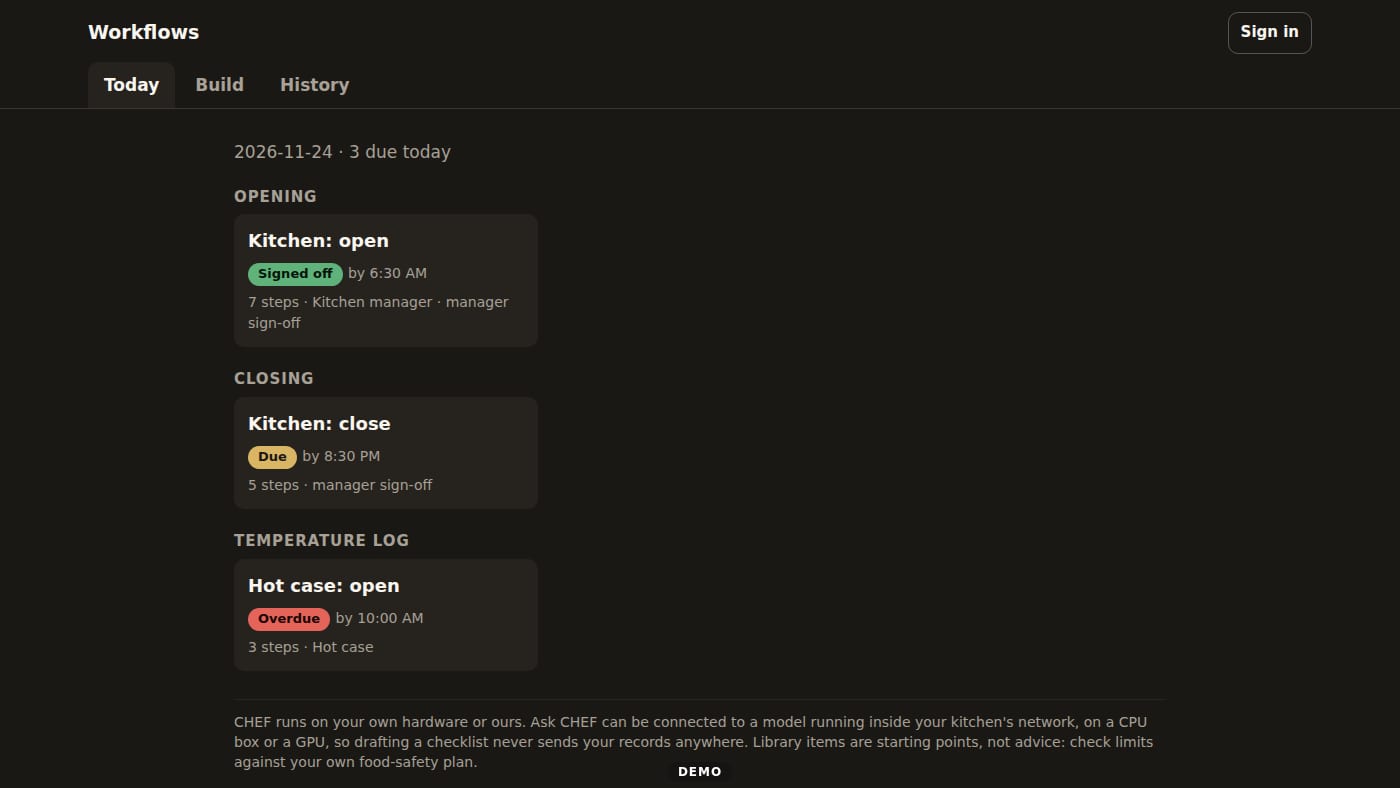
Give a workflow a category, a schedule (as needed, daily, weekdays or weekly), a due time and an owner. The Today view shows what's due, overdue, in progress, done, waiting on sign-off or sent back.
- Assign to a position or a person. A manager on duty can start anything.
- Sign-off is by a manager on duty who didn't finish the run. A send-back needs a note, and it stays in the record beside the approval that follows.
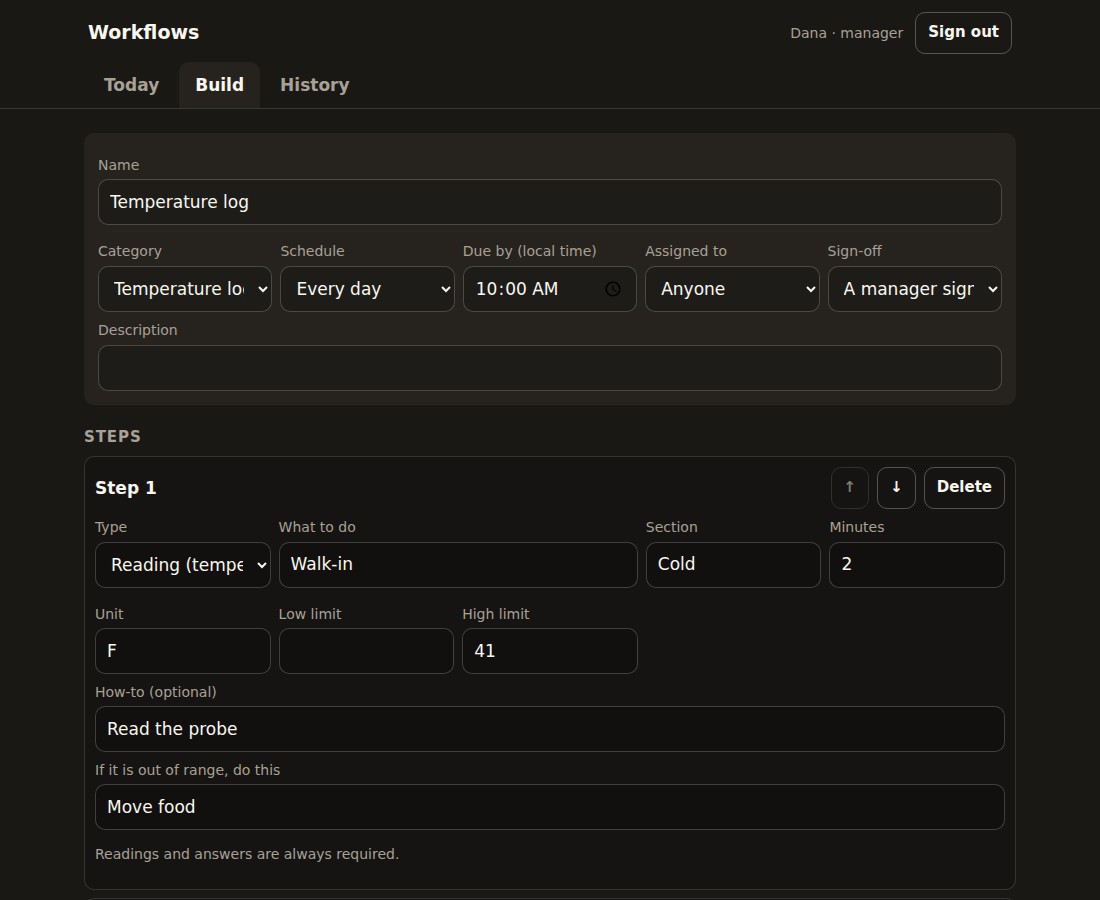
CHEF screen, sample data. Click to see it full size.
Start from the library or a sentence
Begin blank, from a starting point (temperature log, cooling, receiving, prep setup, daily clean, weekly deep clean, opening, closing), or type a sentence and let Ask CHEF draft one.
- The draft model sees only your sentence, no kitchen records or names.
- It runs on a local model by default. Hosted models are off unless the site turns them on.
- A draft is never saved by itself. A person reads it, edits it and presses Save.
One record underneath
A workflow is a checklist, so the checklist screen, the QR task board and Ask CHEF all see it. There's never a second copy of what was done to disagree with the first.
More screens
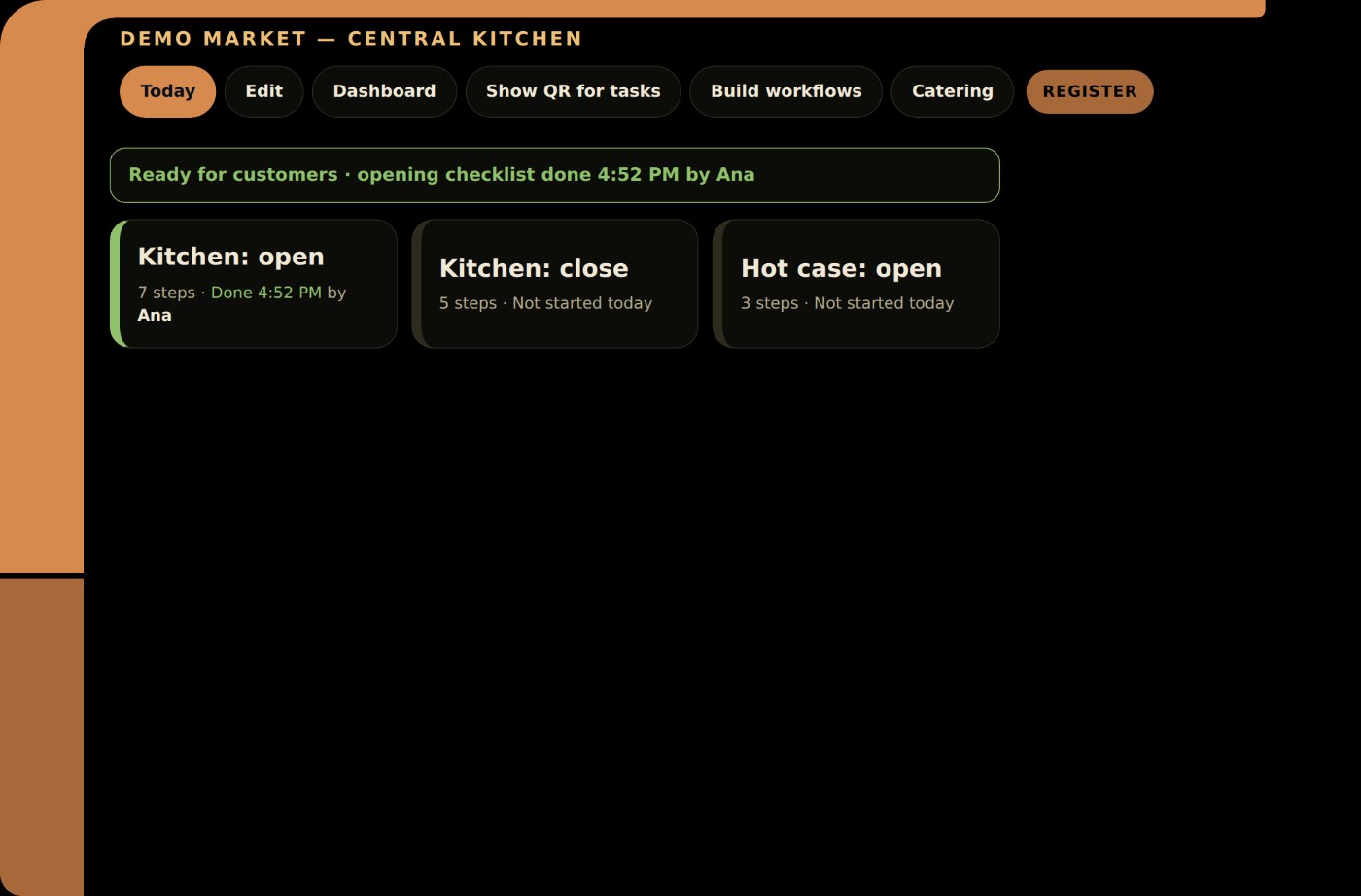
Real CHEF screens on sample data. Click any one to see it full size.
How it works
A manager on duty builds the workflow and sets its schedule, due time and owner.
At the right time it shows as due on the Today view.
Crew sign in with their PIN and work the steps; an out-of-range reading shows the corrective action.
When every step is done, a different manager on duty signs it off or sends it back.
History keeps every run, and a manager can export it as CSV.
What you can change
Steps and sections
Check, reading, typed answer or link steps, with headings, how-to help and required or optional (checks and links only).
Limits and corrective actions
Units, low and high limits for each reading, and what to do when one is out of range.
Schedule and due time
As needed, daily, weekdays or one weekday, with a due time.
Assignment
Anyone, a position, or one person.
Sign-off
Whether a manager must sign off a finished run.
Drafting model
Ask CHEF drafts on a local model by default. A site can switch on hosted inference, or run with no model and use the library.
Rules CHEF holds to
Only managers on duty build
Saving or removing a workflow needs a manager clocked in at a manager position, checked live on every request.
Required means required
Readings and typed answers are always required. Only a check or a link step can be optional.
Out of range stays open
The reading is kept in red, and the step stays open until it has a note or a reading back in range.
Old runs keep their instructions
A run copies its steps when it starts, so editing a workflow never rewrites a run already done.
Starting points only
Library values use common US terms. The owner checks every step and limit against the kitchen's own food-safety plan.
Coming
- Schedules more than once a day, such as every two hours (today you start the log again from Today)
- Photo steps
- A first run on a real kitchen tablet
Try CHEF in your browser
The demo runs on sample data, with nothing to install. Or write to [email protected] and tell us how your kitchen runs.