

Platform / Ordering kiosk
Ordering kiosk
Guests order on the screen and pay at the front.
An in-store touch screen where guests build their own order. The ticket goes straight to the kitchen and the guest walks the ticket number to the register to pay. The kiosk never touches money, so there is no card reader to buy, certify or secure.
The guest's order, screen by screen
It starts with one big button. From there the guest browses the menu by category, opens an item, makes the choices it needs, reviews the cart and sends it.
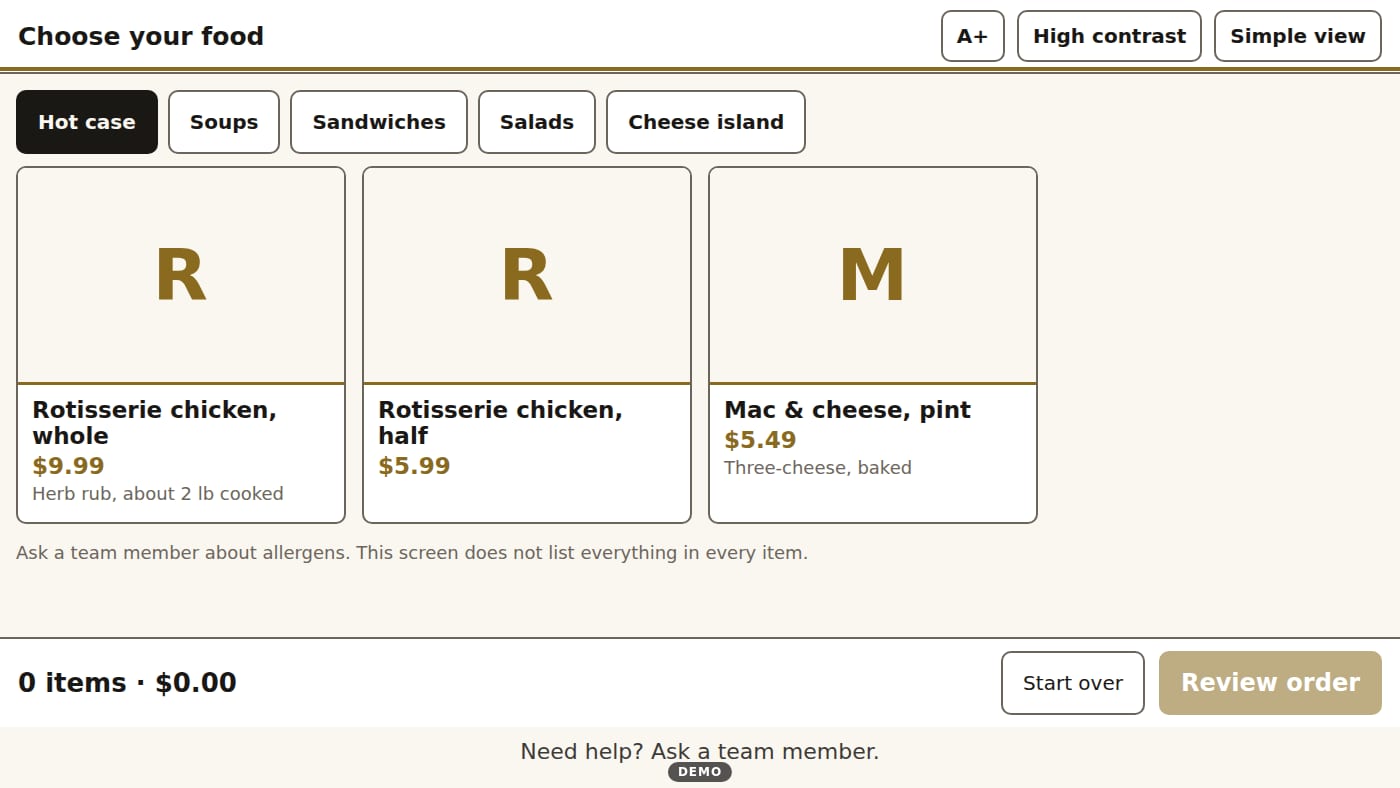
- Menu cards show the item photo, or the item's initial on a colored tile when there isn't one
- An item sheet asks for required picks like Pick a side, and won't move on until they're made
- Choices that add to the price show it, and sold-out choices can't be picked
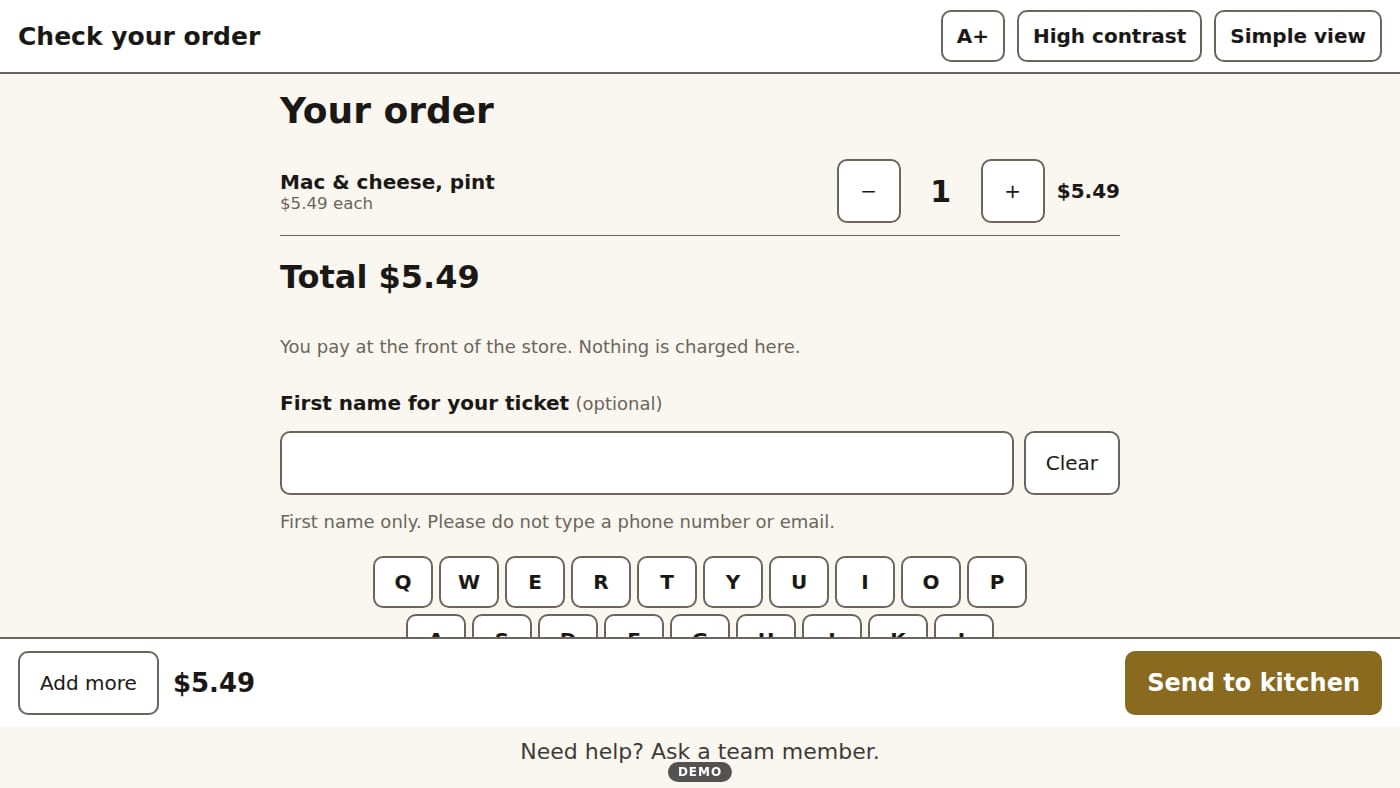
- On the review screen the guest can raise or lower each count before sending
- A first name is optional, typed on the kiosk's own keyboard, up to 20 characters
The ticket number
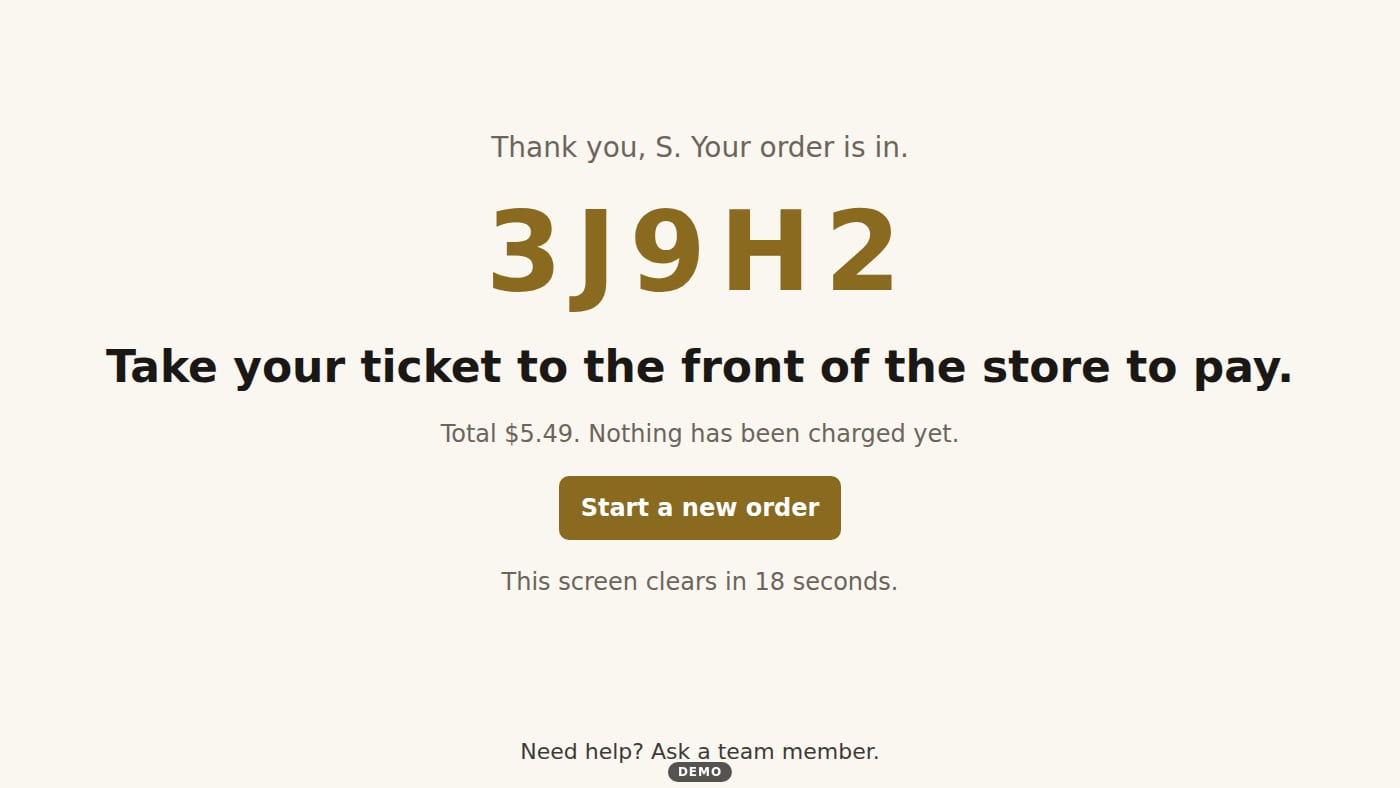
After Send, the guest sees a ticket number and a plain line: take your ticket to the front of the store to pay. The screen clears itself after 20 seconds and is ready for the next guest.
- Every screen carries Ask a team member about allergens
- Dietary tags are the words you wrote, never guessed by CHEF
- A guest who walks away mid-order is cleared after a minute of no taps, cart and name included
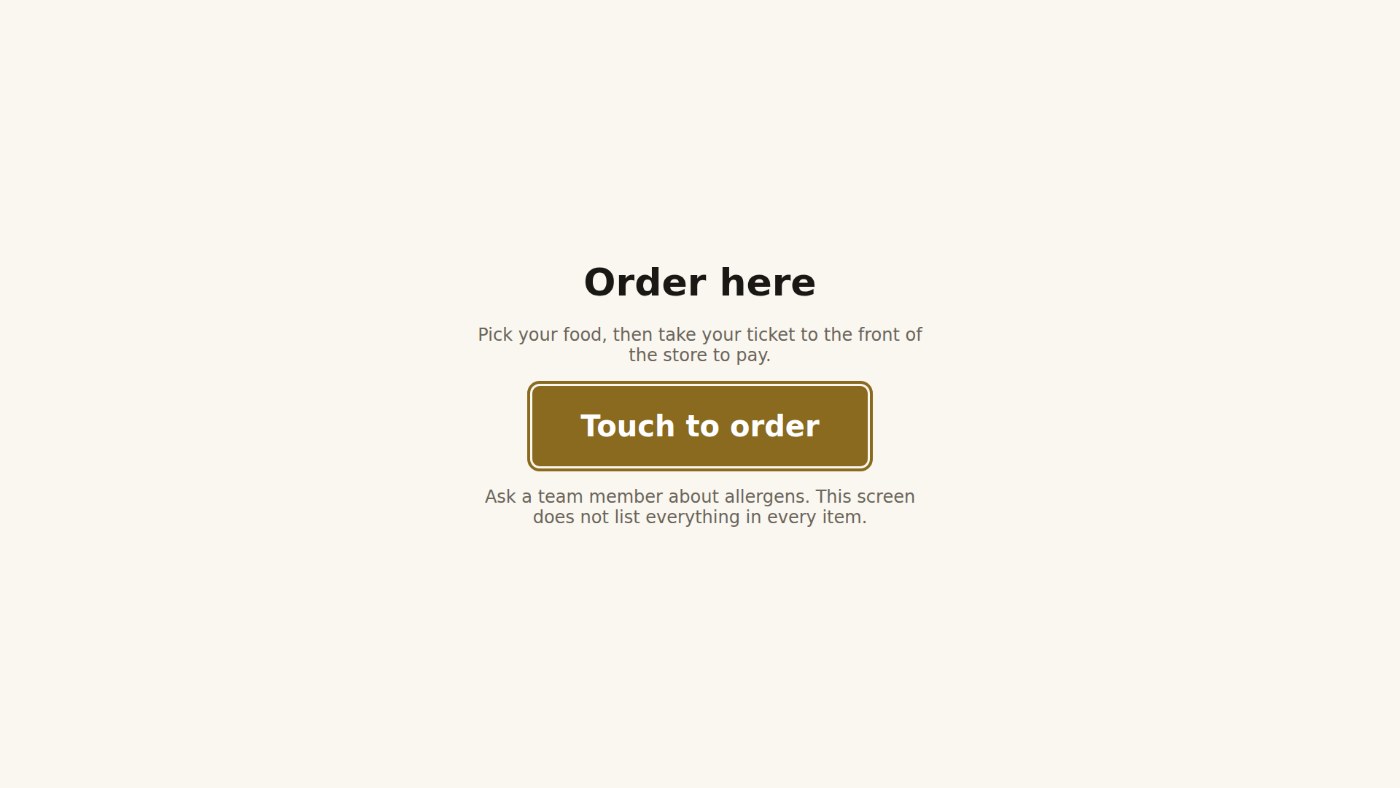
CHEF screen, sample data. Click to see it full size.
What the kitchen and the front see
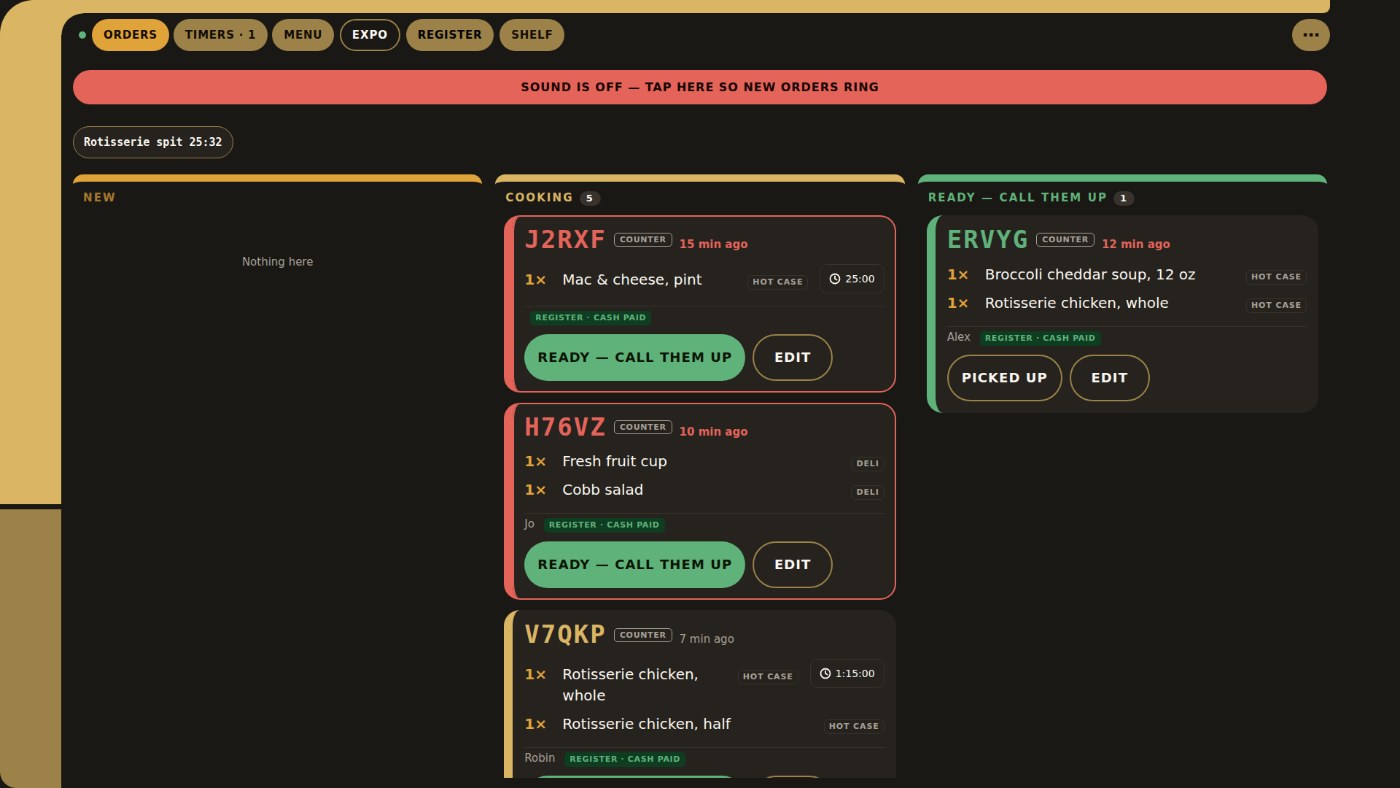
Kiosk tickets land on the same kitchen display, printer and hot-hold path as a ticket a staff member rang in, with a badge that says it is awaiting payment at the register.
- Each choice prints as its own line, so the cook reads it
- When the register reports the sale, or staff mark it paid, the badge changes to paid
Send now or hold for a look
By default a kiosk ticket goes to the kitchen at once. In confirm mode it waits until a crew member releases it, which suits a store that wants a person to glance at each order first.
The staff page
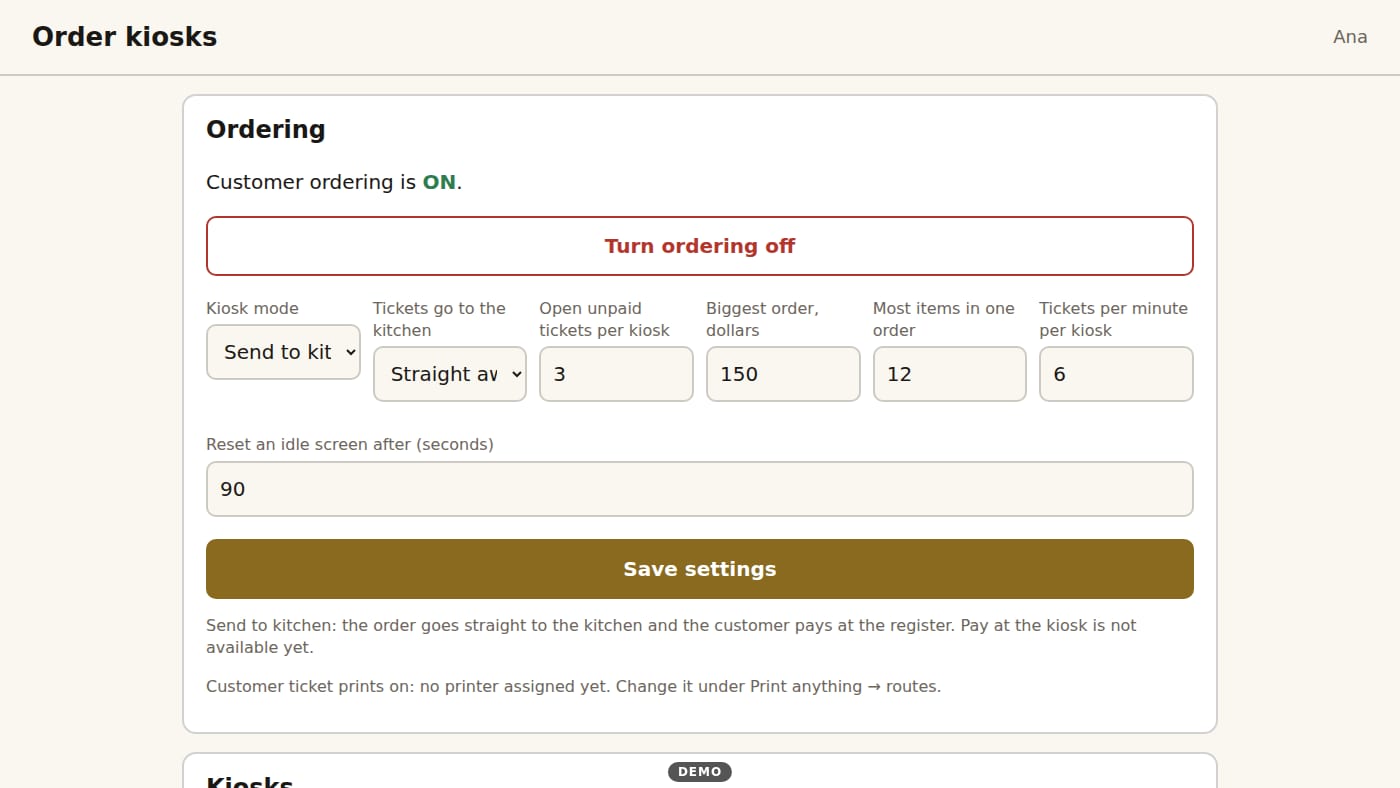
The kiosk manager page lists every kiosk, when it last checked in and how many unpaid tickets it has open, plus the queue of kiosk tickets.
- Any crew member can release a held ticket, or void one that is unpaid and not yet cooked
- Food that was cooked and never paid for is closed out and written off as waste at cost
- Registering a kiosk, revoking one and changing settings take a manager who is clocked in
The locked device
The kiosk is a web page on a tablet, locked to that page with Android screen pinning or iPad Guided Access. There is no app to install and no device management to buy.
- Its key arrives in a one-time setup link, is kept on that device, and is wiped from the address bar
- Staff leave the locked screen by holding a corner and entering the PIN
- If the kiosk is switched off, it says Please order at the counter
More screens
Real CHEF screens on sample data. Click any one to see it full size.
How it works
A manager clocks in, opens the kiosk manager page and registers the kiosk with a name and a spot in the store. CHEF shows its setup link once.
Open that link on the tablet, lock the tablet to the page, and turn customer ordering on.
A guest taps Start, builds an order, adds a first name if they like, and taps Send. CHEF prices it from your menu and the ticket goes to the kitchen, or waits for a tap in confirm mode.
The guest carries the ticket number to the register and pays there. The register or a staff member marks it paid.
If a guest never pays, staff close the ticket from the queue. Uncooked food is voided at no cost, cooked food goes to the waste log at cost.
What you can change
On or off
Customer ordering is off until a manager turns it on, and can be switched off at any time.
Send now or confirm
Choose whether kiosk tickets go straight to the kitchen or wait for a crew member to release them.
Limits
Set open unpaid tickets per kiosk (1 to 50), tickets per minute, items per order and the largest order total.
Idle reset
Choose how long the screen waits with no taps before it clears, from 20 seconds to 10 minutes.
Categories and order
Put each item in a category, set the order categories appear in, and hide items from the kiosk while keeping them on the menu. We set these up with you for now; a screen for them is coming.
Choices and combos
Set up choice groups like Pick a side, with how many to pick, price adds, and options linked to a menu item so they sell out with it. We set these up with you for now; a screen for them is coming.
Tags and photos
Write the dietary tags in your own words and add item photos. Items without a photo show their initial on a colored tile, never an empty box.
Each kiosk by name
Name every kiosk and note where it stands, and revoke any one of them without touching the others.
Rules CHEF holds to
Only a registered kiosk can send
Each kiosk has its own key. No other page or route accepts it, and revoking it takes effect on the next request.
The menu sets the price
Prices sent by the screen are ignored. If the total changed since the guest looked, the order is refused so they can check it again.
One tap, one ticket
A retry after a dropped connection answers with the same ticket. A double tap never makes two.
Limits against waste
Each kiosk can hold 3 open unpaid tickets and send 4 a minute. An order tops out at 12 items and $150.
First name only
Anything that looks like an email or a phone number makes the ticket anonymous. Five wrong PIN tries lock the kiosk for five minutes.
Coming
- Paying on the kiosk itself (today every kiosk order is paid at the register)
- Held-ticket alerts on the bridge for tickets waiting more than 5 minutes in confirm mode
Try CHEF in your browser
The demo runs on sample data, with nothing to install. Or write to [email protected] and tell us how your kitchen runs.