

Platform / Kitchen display
Kitchen display
The screen every ticket goes to, and the place the line fixes it.
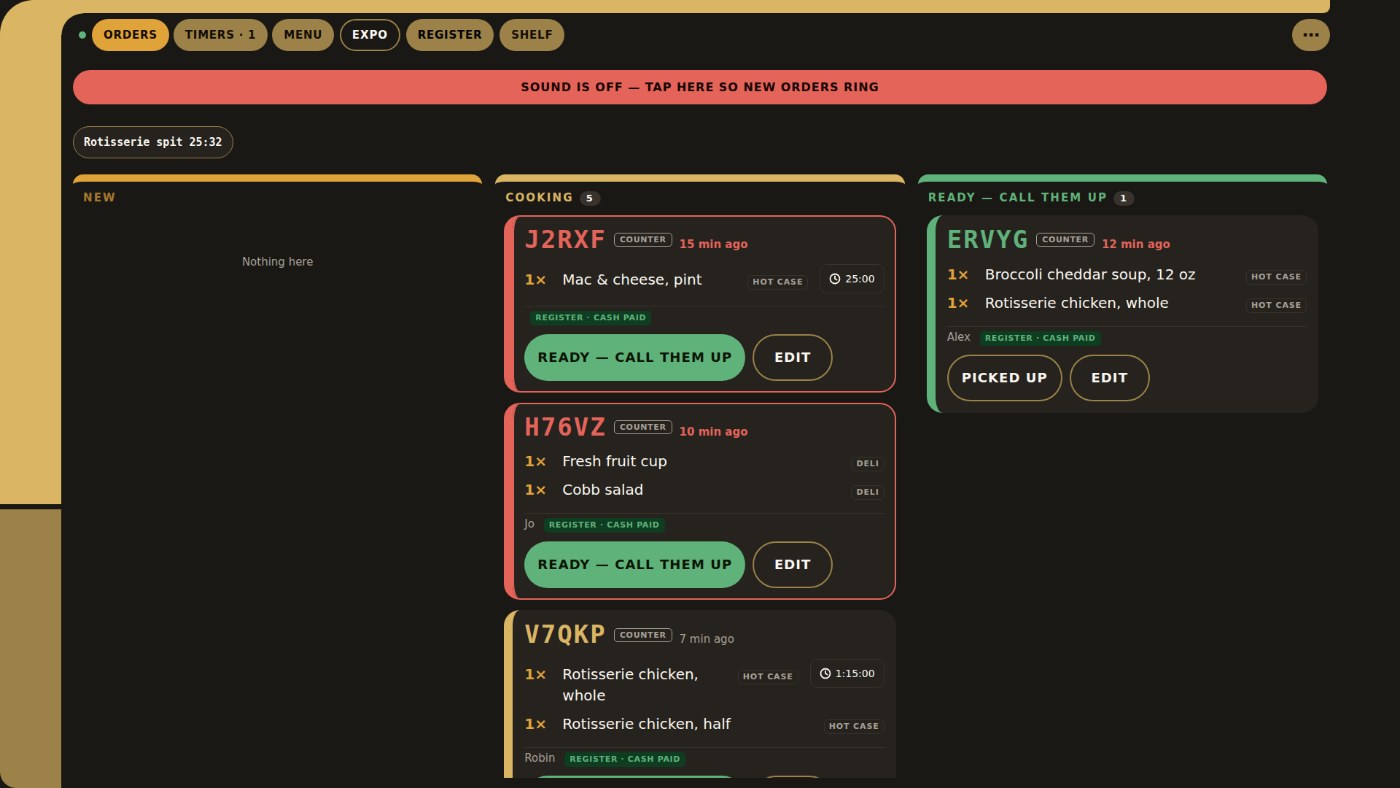
CHEF's kitchen display puts every order in one queue: counter, kiosk, online and catering. Cooks move tickets along with a tap, and when something changes mid-rush they fix the ticket on the same screen, with their name on the change.
Three lanes and a clear source
New, Cooking and Ready sit side by side, and each lane scrolls on its own. Every ticket says where it came from and how long it has waited.
- Source badges for counter, kiosk, online, catering and internal orders
- Late tickets are marked
- Kitchens that ring up on their own Square register can show those paid tickets here too, if they switch it on
Stations that never lose food
Map menu items to stations like Fry or Grill. Expo sees every ticket. A station sees only its own lines.
- An item with no station falls back to expo, so adding a station never hides food
- Each screen remembers which station it is
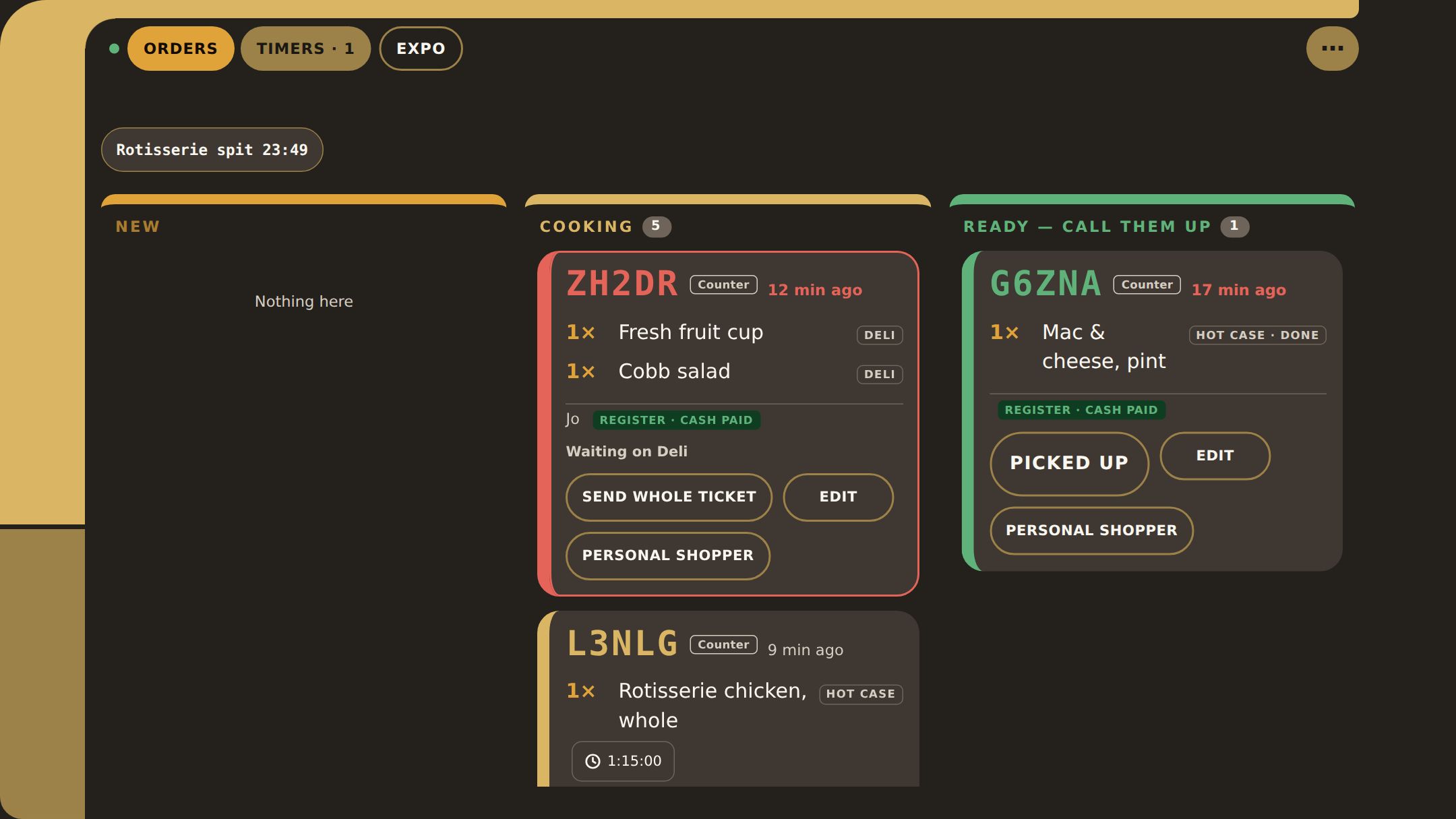
CHEF screen, sample data. Click to see it full size.
Timers the whole kitchen shares
Cook timers run on the server clock, so every screen counts the same time and a reload loses nothing.
- Optional target temperature, shown in °F or °C
- FDA Food Code temperatures offered as one-tap starting points, never imposed
- A finished timer rings on every screen until someone taps it and logs the reading
Edit a ticket on the fly
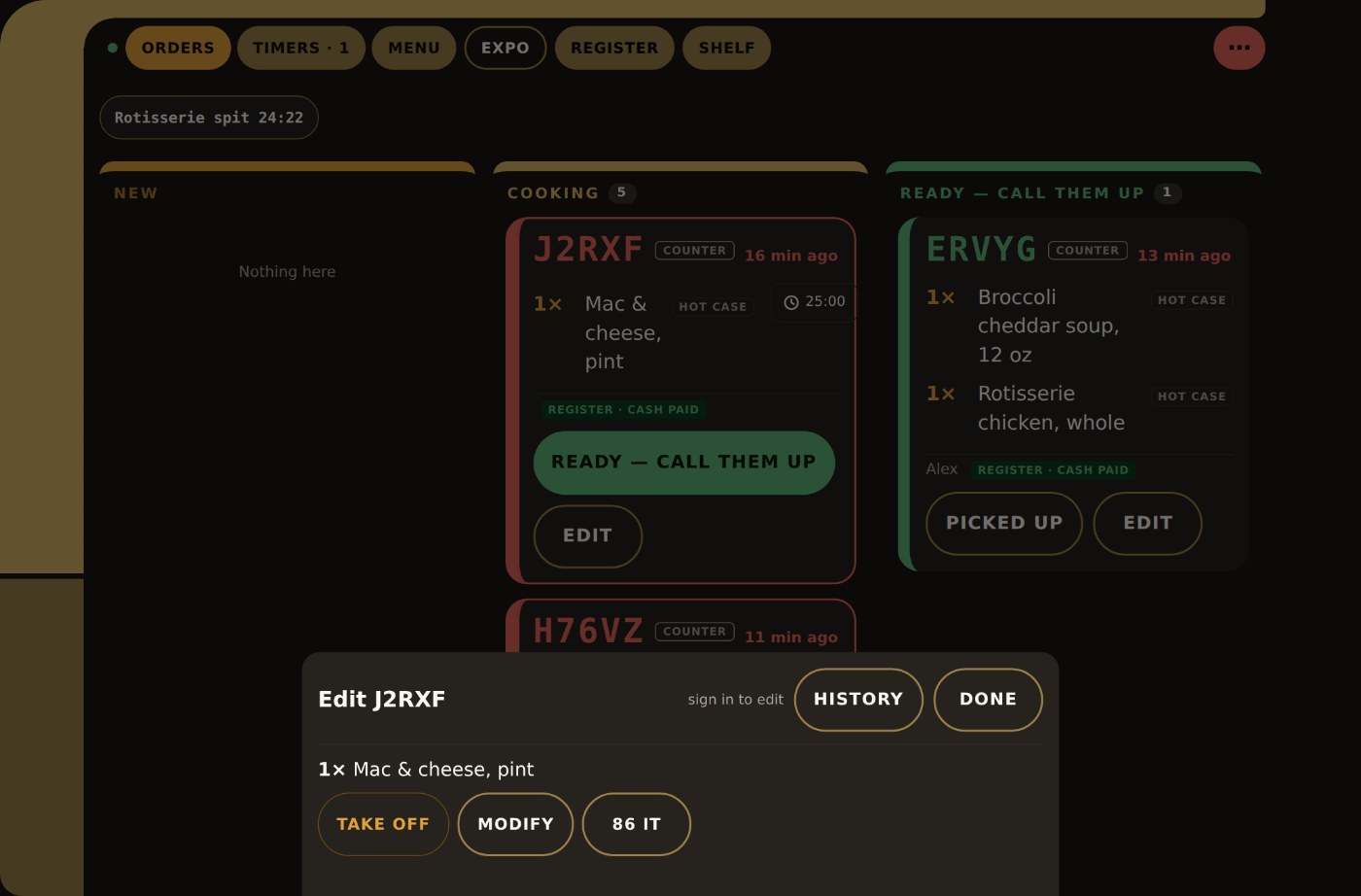
Tap Edit on any open ticket. Take an item off with a reason, cut a count, or add a modifier like NO ONION or ALLERGY. Allergy tags are drawn red and pulse.
- Every change needs a crew sign-in and shows EDITED with the person's name
- History on the ticket shows time, person, what changed and why
- Made wrong writes the recipe off as waste, once, even if the tablet retries
86 it from the line
When the fryer runs out of tenders, the cook marks the item sold out right from the ticket. New orders can't ask for it, and it shows in an 86 strip above the board until someone taps it back in stock.
Who hands the food out
Each station is set to hand out its own part, or to send it through the pass. A grocery department can hand out its own food; a restaurant can send everything through Expo while the bar sends drinks itself.
- A station can only hand out food it has marked done, and only its own part
- The order is picked up when every part is
- Kitchens that send everything through the pass behave as before
Personal shopper orders
An order can be marked as a personal-shopper order. Each department hands its part to the shopper, and the shopper completes it once every department has handed over.
- The last department's tap never completes the order; the shopper's does
- The pass shows each part as done or with the shopper
Loud, soft or off
A Sound button on each screen cycles loud, soft and off.
- Loud rings on a new order and about every 12 seconds until it is accepted
- Soft rings once per order and reminds once a minute
- Off lasts 30 minutes and then returns by itself, so a screen left muted cannot miss orders for good
More screens
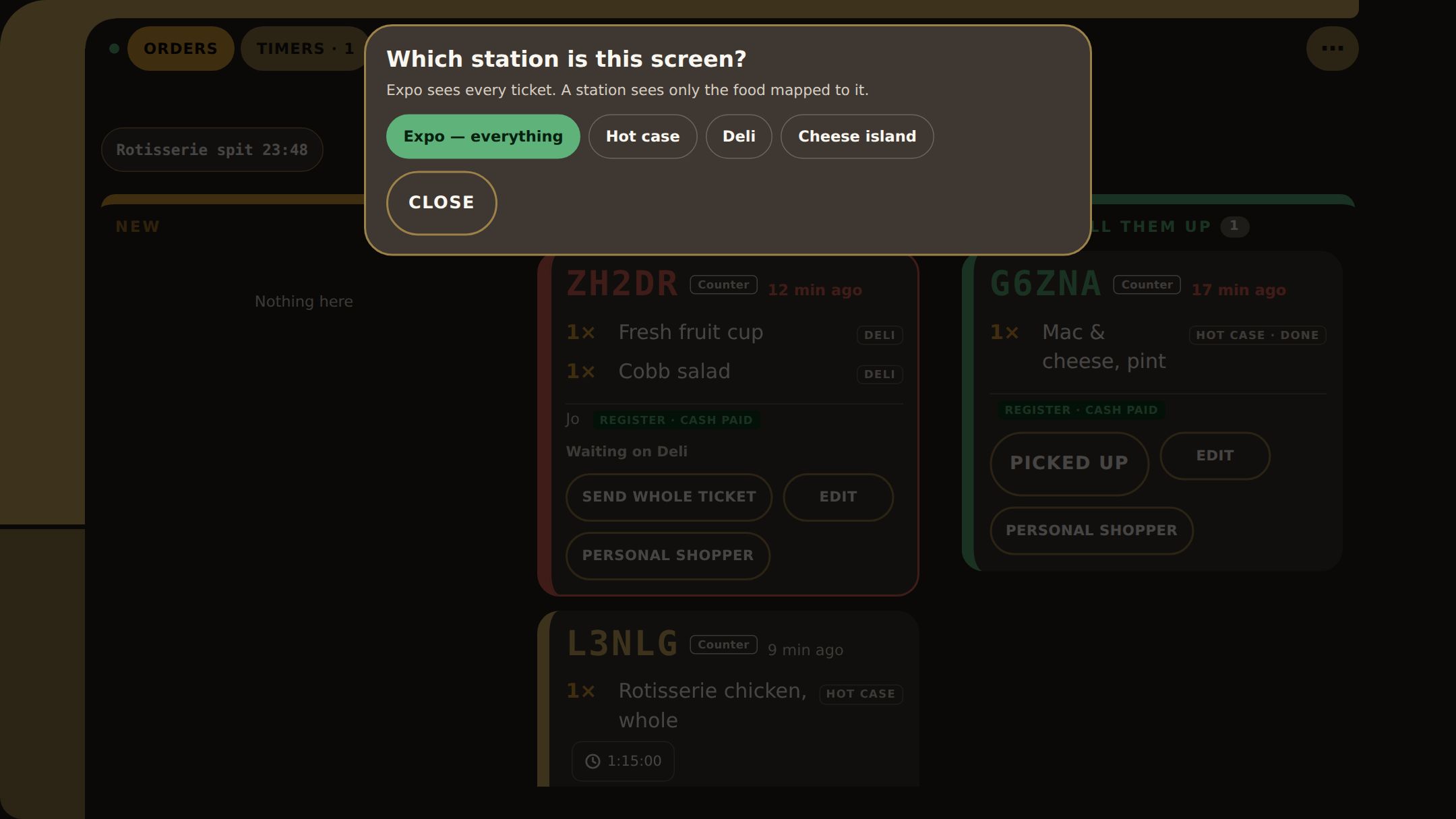
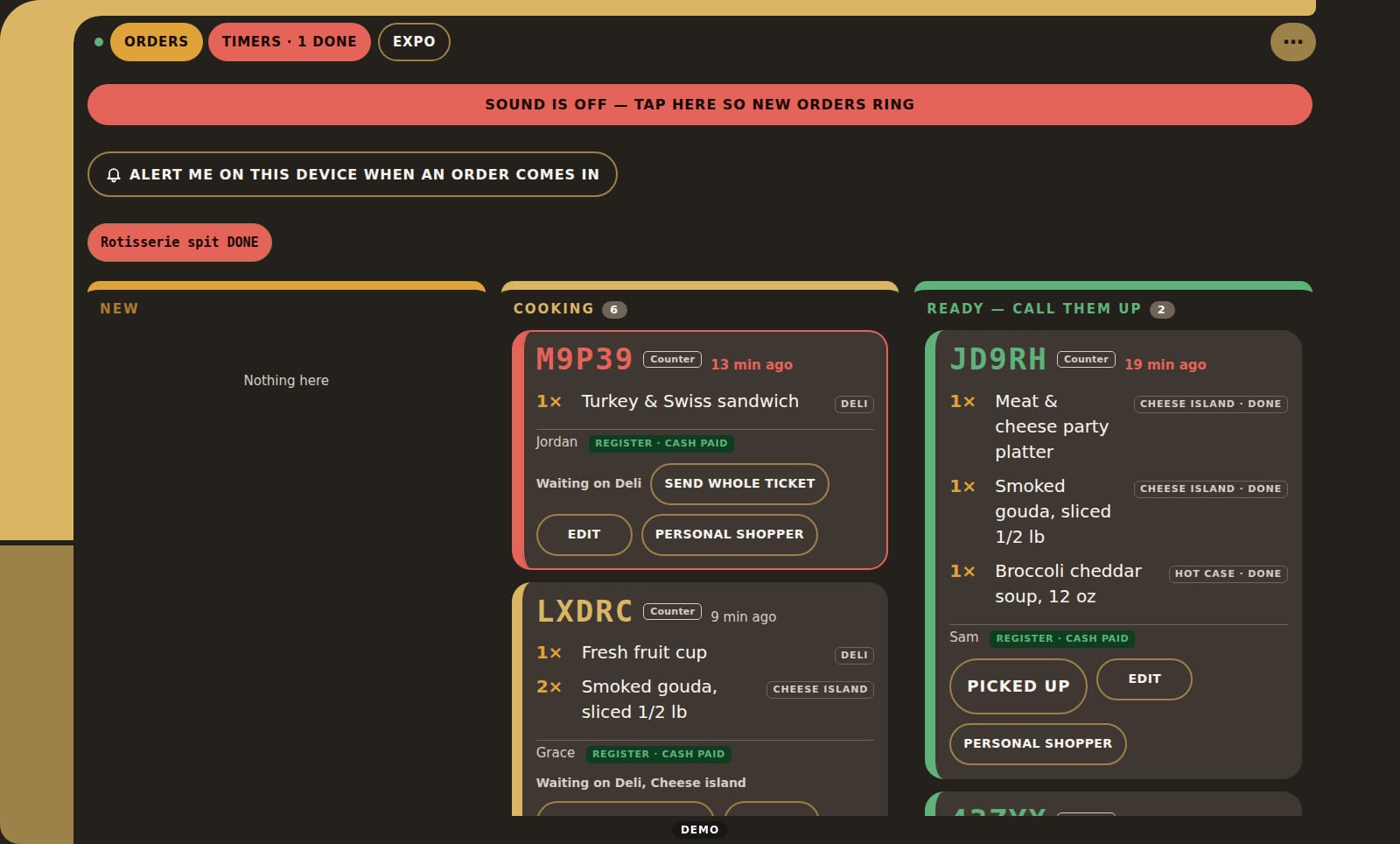
Real CHEF screens on sample data. Click any one to see it full size.
How it works
Open the kitchen screen on a tablet or phone, type the kitchen code once, and add it to the home screen.
Pick the screen's station, or leave it on expo to see everything.
Orders land in New with a chime. Tap to move them to Cooking and Ready.
A guest changes their mind, or something burns: tap Edit, sign in, and fix the ticket. The change is on record with your name.
When the line goes quiet the screen sleeps, and the next order wakes it.
What you can change
Stations
Add stations like Fry or Grill and map each menu item to one. Each screen picks its own station or stays on expo.
Timer presets
Name, time and an optional target temperature, tied to a station or a menu item so a one-tap timer sits on that item's line.
°F or °C
Show temperatures the way your kitchen reads them. Readings are stored once, with the unit they were typed in.
Menu and photos
Edit the menu, mark items sold out and add item photos from the Menu tab on the same screen.
Your Square register tickets
Off by default. Switch it on to show paid tickets from your own Square register beside every other order.
Look of the screen
Choose between the standard look and the darker console look for each tablet. Light and dark follow the device.
Locked and awake
Lock the tablet to the kitchen screen with Android screen pinning or iPad Guided Access, and set a PIN for the staff exit.
Rules CHEF holds to
Edits never move money
Taking food off a paid ticket tells the crew what it sold for and where to settle it. The refund itself stays with the register or the existing refund path.
The sale is never rewritten
Edits sit on top of the original order in an append-only record. What was sold and what the kitchen changed can both be read later.
No unpaid food from the line
A count can only go down from what was sold. Adding food is a new sale at the register, and a finished, refunded or voided ticket can't be edited.
Only delivered orders show
The screen shows orders that actually reached this kitchen. A declined or unpaid online order never appears.
No reading is not a reading
If nobody typed a temperature, the record says so. It is never filled in as zero or as the target.
Coming
- Adding an item from the kitchen display (today that is a new sale at the register)
- Showing ticket edits on printed tickets and on the guest-facing screen
- Station screens showing only the edits to their own lines
Try CHEF in your browser
The demo runs on sample data, with nothing to install. Or write to [email protected] and tell us how your kitchen runs.